Contents
You reach for your phone to check one thing, and twenty minutes later you are still scrolling. The good news is you do not have to lock your whole phone or rely on willpower. You can block just the apps that pull you in, on a schedule you control, and most of the tools to do it are already built into your phone for free.
This guide shows you how to block distracting apps on both Android and iPhone. We start with the fast free way, then cover the dedicated app blockers worth using when you need stricter limits.
⚡ Quick Answer
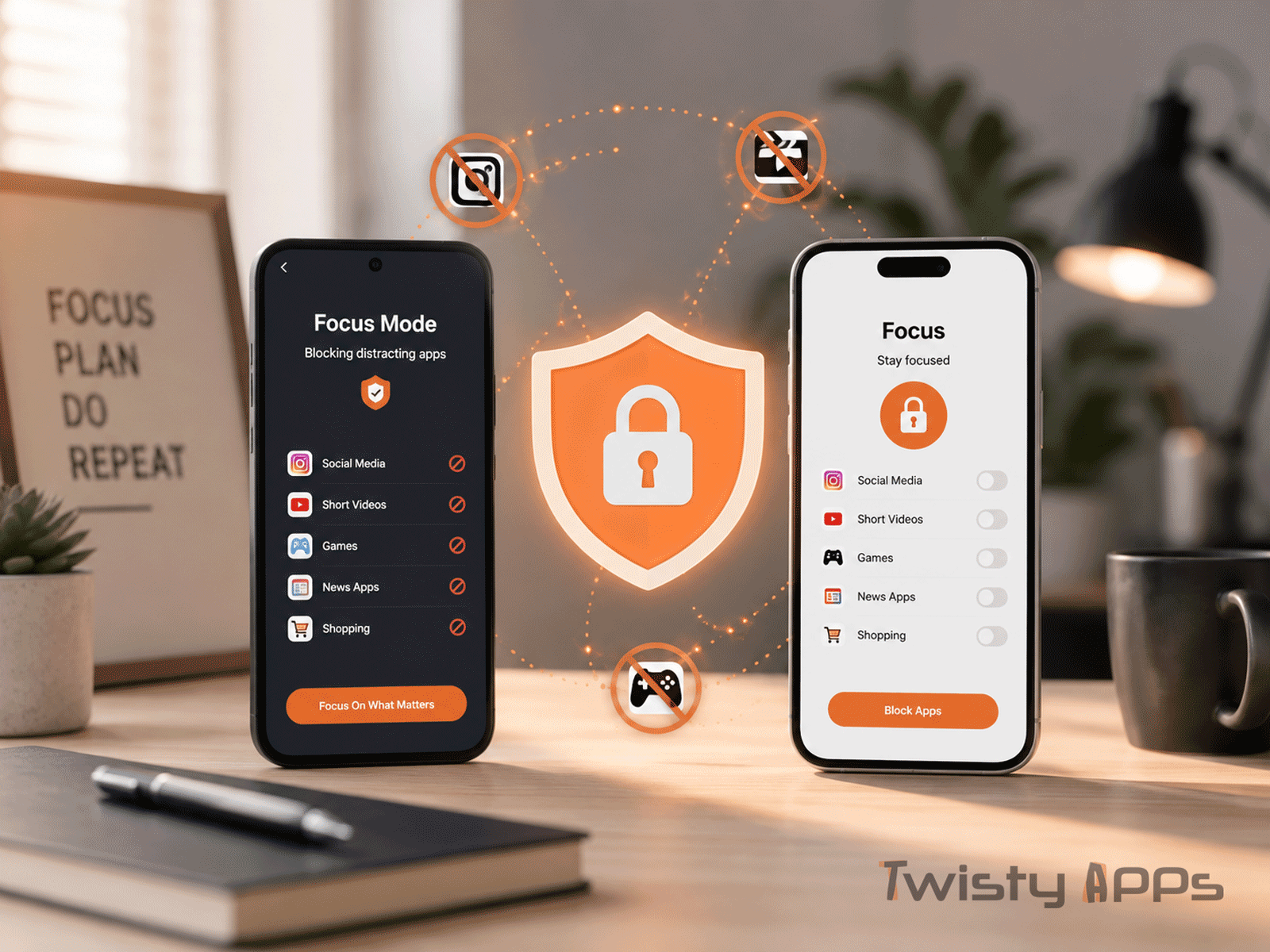
- Android: Open Settings, then Digital Wellbeing & parental controls, then Focus mode, pick the apps to pause, then start or schedule it. Use app timers for daily caps.
- iPhone: Open Settings, then Screen Time. Use App Limits for daily caps, Downtime to block apps in set hours, and a Focus mode to silence the rest.
- Need it stricter? Use a dedicated app blocker with scheduling and a hard to disable strict mode (covered below). Free built in tools are easy to switch off in a weak moment.
Who this guide is for
Students who lose study time to social apps, remote workers fighting notification pings, and anyone who wants their phone for the useful stuff without the doom scroll. No root, no technical setup, and no paid app required to start.
Why block specific apps instead of locking the whole phone
Locking your entire phone works for a hard study block, and that is covered in our guide to locking your phone while studying. But most people still need maps, calls, messages, or a work app while staying off social media and games. Selective blocking keeps your phone useful and removes only the time sinks.
Method 1: Free built-in tools (try this first)
Both Android and iPhone ship with focus and screen time controls. For most people these are enough and cost nothing.
On Android: Digital Wellbeing
- Focus mode lets you select distracting apps and pause them instantly or on a schedule. Paused apps grey out and stop sending notifications until the session ends. (Google Android Help)
- App timers set a daily time limit per app. Hit it and the app pauses for the rest of the day.
- Bedtime mode and Do Not Disturb mute notifications and can grayscale the screen at night.
- The path is roughly Settings, then Digital Wellbeing & parental controls. The wording varies by brand (Samsung, Pixel, Xiaomi), so check your own device.
Here is the official Android walkthrough of Focus mode from the Android team:
On iPhone: Screen Time
- App Limits set a daily time budget for an app or a whole category such as Social. (Apple Support)
- Downtime blocks chosen apps during hours you set, which is great for study or sleep windows.
- Focus modes (Work, Personal, Sleep, Do Not Disturb) hide distracting apps and can switch automatically by time or location. (Apple Support)
- The path is Settings, then Screen Time. (Apple Support)
Heads-up: Built in limits are deliberately easy to extend with an “Ignore limit for today” tap. If you will talk yourself past them, jump to a dedicated blocker with a strict mode.
Method 2: Dedicated app blockers (when built-in is not enough)
If you keep bypassing the built in limits, a dedicated app blocker adds stricter controls. Here is what actually matters when choosing one:
- Scheduling and block sets: group apps and auto trigger blocks at set times or after a usage limit.
- Strict or lock mode: stops you disabling the block mid session. This is the feature that makes blocking actually work.
- Usage reports: show where your time actually goes.
- Cost and model: free tier limits versus a paid upgrade. Always check current pricing on the store listing, because it changes often.
- Permissions: most blockers need accessibility or usage access plus a battery optimization exemption to stay reliable.
This article originally featured one such Android app. Apps like this come and go, and their prices and limits change, so it helps to compare a few. Below are three well known app blockers that run on both Android and iPhone and have an official website you can check before installing.
Three cross-platform app blockers worth knowing
Disclosure: This article may contain affiliate links. If you buy through these links, TwistyApps may earn a small commission at no extra cost to you. We only recommend tools or products when they are relevant to the topic and useful for readers.
| App | What it does | More info |
|---|---|---|
| AppBlock | Blocks distracting apps, websites, and notifications using schedules and custom block profiles. Its strict mode is hard to switch off mid session, which is the feature most people actually need. The free tier covers core blocking, with a paid upgrade for advanced rules. Some Android options are not on iOS yet. | Read more |
| Rating: 4.6 / 4.6 (Android / iOS) | Downloads: 10M+ (Google Play) | ||
| BlockSite | Blocks apps and websites with a scheduler, a block list, and password protection. It began as a website blocker and added app blocking, so it suits people who also get pulled into the mobile browser. The free version shows ads and offers in app purchases. Works on Android, iPhone, and as a browser extension. | Read more |
| Rating: 3.8 / 4.2 (Android / iOS) | Downloads: 10M+ (Google Play) | ||
| Freedom | Blocks apps and websites and syncs one blocking session across iPhone, Android, Mac, Windows, and Chrome, which is its standout feature. Locked mode stops you ending a session early. There is a limited free trial, then a paid plan. Best if you want the same block to apply across all your devices at once. | Read more |
| Rating: 4.1 / 4.3 (Android / iOS) | Downloads: 1M+ (Google Play) | ||
| Store ratings and download figures fetched on 25 June 2026 from Google Play and the Apple App Store. Google Play shows installs as ranges; Apple does not publish download counts, so Downloads reflects Google Play only. Figures change over time, so check the official listings for the latest numbers. | ||
Built-in tools versus a dedicated app blocker
| What you get | Android Digital Wellbeing | iPhone Screen Time | Dedicated app blocker |
|---|---|---|---|
| Price | Free, built in | Free, built in | Free version, paid upgrade (varies by app) |
| Block specific apps | Yes (Focus mode) | Yes (App Limits, Downtime) | Yes |
| Schedule blocks | Yes | Yes (Downtime) | Yes |
| Per-app daily limit | Yes (app timers) | Yes (App Limits) | Yes (free tier may cap how many) |
| Hard “cannot disable” mode | Limited | Limited (can ignore) | Yes (strict or lock mode) |
| Usage reports | Yes | Yes | Yes |
| Works on | Android | iPhone, iPad | Mostly Android, fewer on iPhone |
Step-by-step: set up your first block
- Decide your trigger, either specific hours (for example 9am to 1pm) or a daily cap (for example 30 minutes).
- Pick the apps that actually derail you. Usually 3 to 6 apps cause most of the damage.
- Create the block in your chosen tool (Focus mode, Screen Time, or an app blocker).
- Turn on strict or lock mode if available, so you cannot quit it in a weak moment.
- Test it once, then adjust the apps or timing after a few days.
Make your blocks actually stick
Blocks fail when your phone quietly kills the app in the background. To keep them reliable, especially with a third party blocker on Android:
- Exclude the app from battery optimization so the system does not suspend it.
- Enable any keep service running or foreground service option in the app’s settings.
- Grant the permissions it asks for (usage access, accessibility, and on some apps device admin or notification access).
- Pin the app to recents on phones that aggressively clear memory.
- On iPhone, set a Screen Time passcode that is different from your unlock code, so limits cannot be turned off casually.
Common mistakes
- Blocking too many apps at once. Start with your top 2 or 3 time sinks.
- No strict mode. If you can tap “ignore for today”, you will.
- Forgetting battery and permission setup. This is the number one reason blocks silently stop working.
- Using the same passcode as your unlock code on iPhone, which defeats the limit.
- Treating it as all or nothing. Schedule blocks around your real day.
Pros and cons
Built-in tools
Pros
- Free, already installed, private.
- Fine for most people.
Cons
- Easy to bypass, fewer hard lock controls.
Dedicated app blockers
Pros
- Stricter, schedulable, harder to disable.
- Detailed usage reports.
Cons
- Need extra permissions and battery tweaks.
- Some features are paid, so check privacy before installing.
Our recommendation
Start free. Android users should use Focus mode plus app timers. iPhone users should use App Limits plus Downtime plus a Focus mode. Give it a week. If you keep overriding the limits, step up to a dedicated app blocker with a strict mode and the battery and permission setup above. Choose by the strictness you need, not by star rating alone.
FAQ
Can I block apps for free?
Yes. Android’s Digital Wellbeing and iPhone’s Screen Time both block or limit apps at no cost.
How do I block apps only during work or study hours?
Use scheduled blocking. Android Focus mode can run on a schedule, iPhone has Downtime, and a third party blocker can trigger a block set by time.
Why does my app blocker stop working after a while?
Your phone is killing it in the background. Exclude it from battery optimization and enable its keep running or foreground option.
Can someone block apps so they cannot be turned off?
Strict or lock modes, and an iPhone Screen Time passcode, make blocks much harder to disable mid session.
Will blocking apps delete my data or uninstall them?
No. Blocking only pauses access. Your apps and data stay intact.
Is this the same as locking my whole phone?
No. To lock the entire device for a set time, see our lock phone while studying guide. This guide blocks only the apps you choose.
Sources and references
- Apple Support: Get started with Screen Time on iPhone
- Apple Support: Set schedules with Screen Time (Downtime and App Limits)
- Apple Support: Turn on or schedule a Focus on iPhone
- Google Android Help: Manage your time with Digital Wellbeing (Focus mode)
Related TwistyApps guides
- Lock your phone while studying: lock the whole device for a set time.
- Smartphone security guide: keep your phone and data safe.
- FamiSafe parental control: for blocking or monitoring a child’s device.