
Contents
Most guides about AI privacy tell you to go and read the privacy policy. That is not much help when you are holding a resume, a client contract or a block of production code and deciding whether to paste it. So I opened the setting that actually decides this on the five AI tools I use every day, and wrote down what each one was set to before I touched anything.
Quick answer
All five were already switched on. On ChatGPT, Google Gemini, Claude, Microsoft 365 Copilot and GitHub Copilot, the setting that lets the company use your conversations to train its models was on when I looked, on accounts where I had never changed it.
Each product calls it something different, and one of them does not keep the setting in the product at all. That is most of why this is so hard to check.
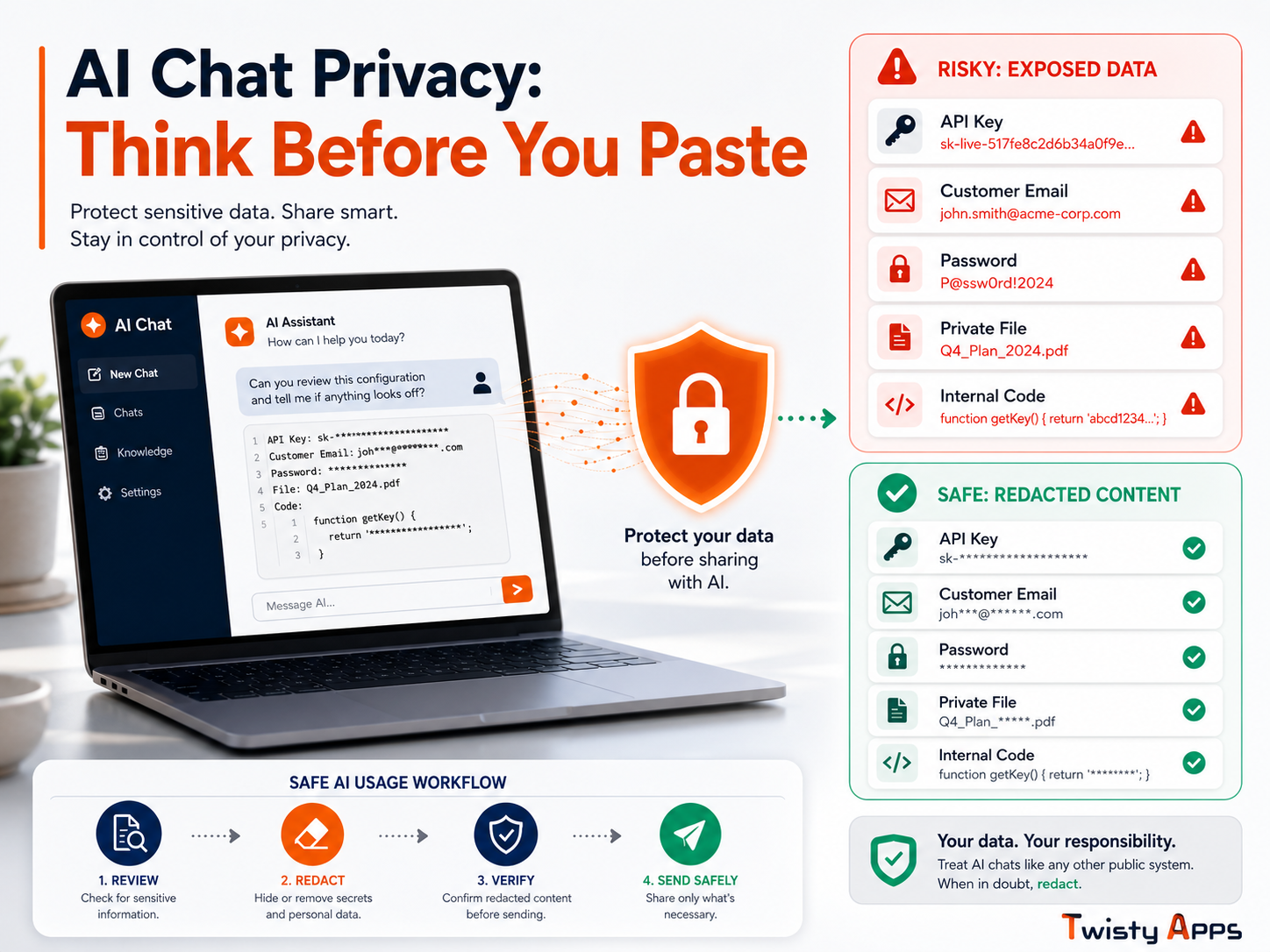
Not sure whether what you are about to paste is even risky? Check what you are about to paste first.
Tools checked
5
Found switched on
5 of 5
Checked on
25 Aug 2026
Time to fix yours
About 2 min
How I checked this
This matters more than the results, because it tells you how much weight to put on them.
My method, on 25 August 2026
✓ Opened each tool’s own settings and recorded the state before changing anything.
✓ Used my real working accounts, which I had never adjusted these settings on.
✓ Copied each setting’s name and helper text word for word, rather than paraphrasing.
✓ Noted the date, because these defaults change without any announcement.
The accounts were not all on the same plan, and that is worth being upfront about. ChatGPT was a paid personal plan, Microsoft 365 Copilot is a paid business product, Claude and GitHub Copilot were free accounts, and Gemini was a personal Google account. Each tool’s plan is listed in its own table below, so you can weigh each result yourself.
Note: I looked only at what any user can see: the settings screens themselves. I did not inspect app internals or network traffic, so this tells you what each tool shows you and defaults to, which is also exactly what you can act on.
Why this is so confusing in the first place
The confusion is not your fault, and it is not really about privacy policies being long. Doing this exercise made the actual reason obvious, and it is more mundane than it looks.
The five products use five different names for what is essentially the same switch. Only the word “improve” shows up more than once, and in one case the name does not mention models, training or data at all. If you are trying to check this across the tools you use, you cannot search for the same phrase twice.
Five products, five different names for the same switch, and one of them is not in the product at all.
What each tool was set to
Same check, five times, in the order most people are likely to hit them.
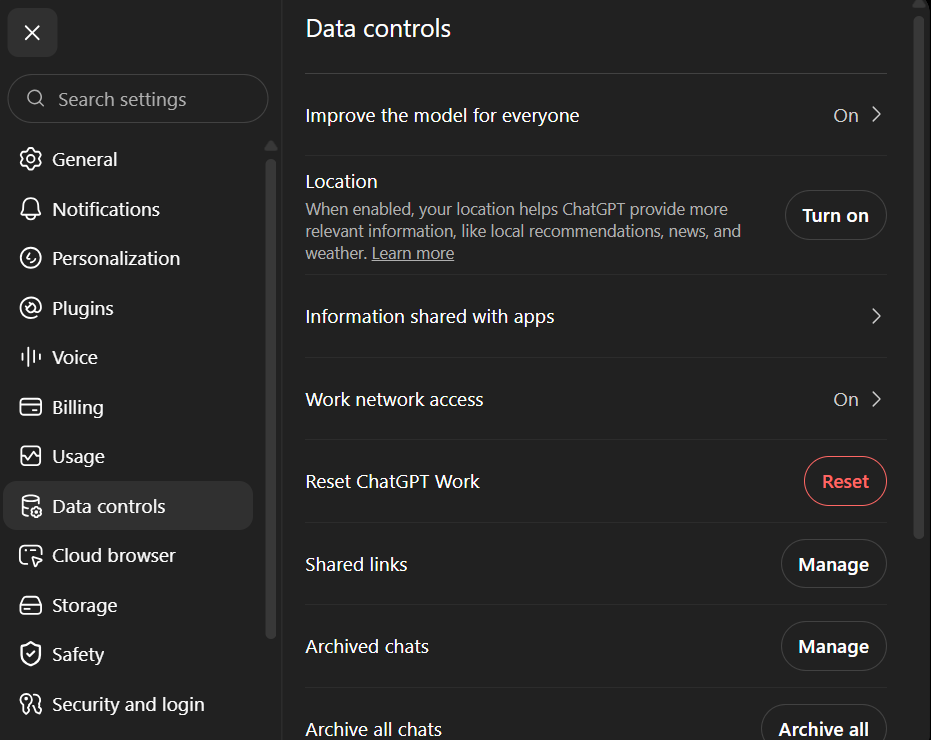
1. ChatGPT
| Setting name | Improve the model for everyone |
| Where to find it | Settings > Data controls |
| State when I looked | On |
| What it says it does | “Allow your content to be used to train our models, which makes ChatGPT better for you and everyone who uses it. We take steps to protect your privacy” |
| Retention shown in settings | None shown on this screen |
| Plan I checked | Paid personal plan |
Of the five, this was the easiest to find and the most plainly worded. It sits near the top of a settings page that is actually called Data controls, and the helper text says outright that your content trains the models.
2. Google Gemini
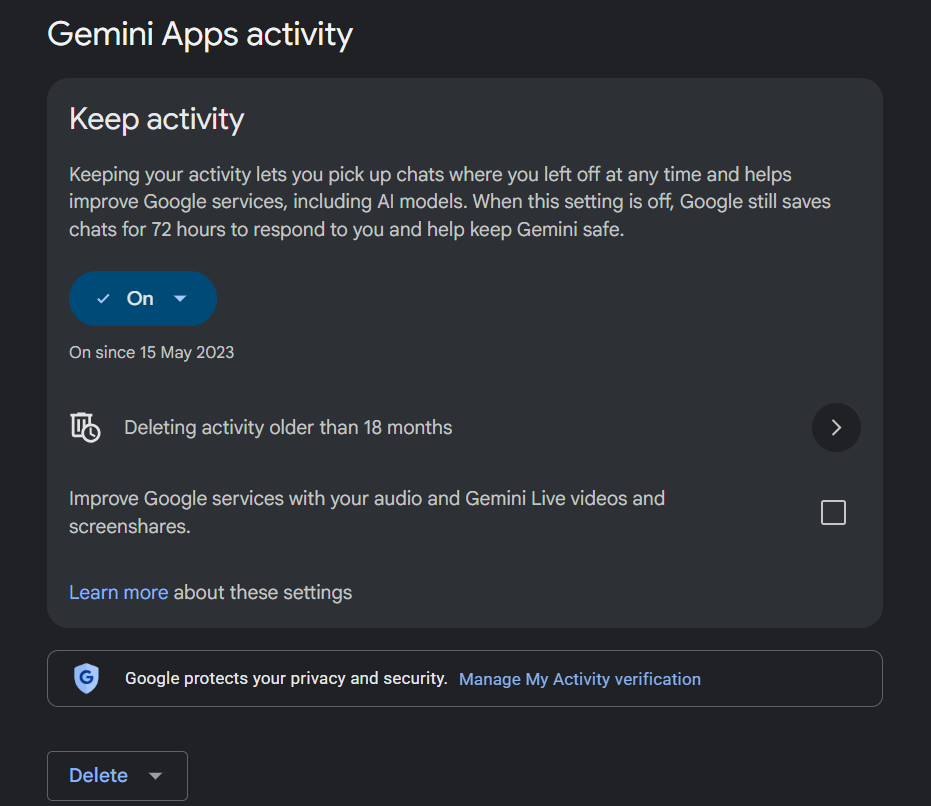
| Setting name | Keep activity (under Gemini Apps activity) |
| Where to find it | Settings > Activity > Gemini Apps activity |
| State when I looked | On, marked “On since 15 May 2023” |
| What it says it does | “Keeping your activity lets you pick up chats where you left off at any time and helps improve Google services, including AI models. When this setting is off, Google still saves chats for 72 hours to respond to you and help keep Gemini safe.” |
| Retention shown in settings | 18 months (“Deleting activity older than 18 months”), and 72 hours even when switched off |
| Plan I checked | Personal Google account |
This is the one whose name gives you no clue. “Keep activity” sounds like chat history, and it is, but the same switch also covers using your conversations to improve Google’s AI models. It was the only one of the five that showed me a retention period without leaving the settings screen.
Worth noting: not everything was on. Gemini’s separate option for using your audio, Gemini Live video and screenshares was unchecked on my account.
3. Claude
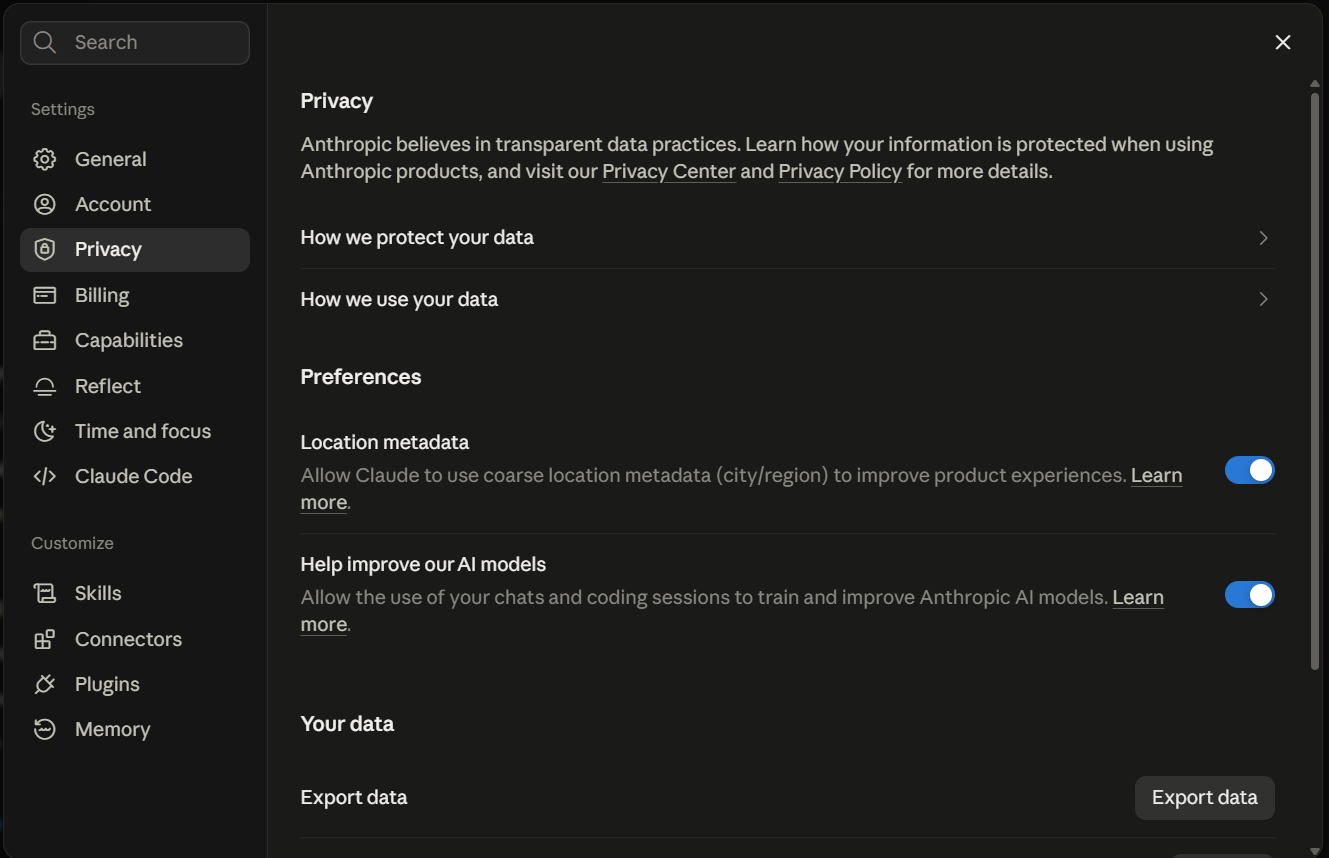
| Setting name | Help improve our AI models |
| Where to find it | Settings > Privacy > Preferences |
| State when I looked | On |
| What it says it does | “Allow the use of your chats and coding sessions to train and improve Anthropic AI models” |
| Second switch also on | Location metadata: “Allow Claude to use coarse location metadata (city/region) to improve product experiences” |
| Retention shown in settings | None shown on this screen |
| Plan I checked | Free account |
Claude was the only one with two switches on by default. The training one names coding sessions specifically, which is worth knowing if you paste work code into it.
4. Microsoft 365 Copilot
| Where to find it | Settings > Privacy |
| State when I looked | On |
| What it says it does | “Allow conversations with Copilot to help train AI. Conversation activity includes anything you do in or add to the conversation, like files” |
| Retention shown in settings | None shown on this screen |
| Plan I checked | Microsoft 365 Copilot, a paid business product |
Read the wording twice: this is the only one of the five that spells out that files count. “Anything you do in or add to the conversation, like files” is broader than most people picture when they think of a chat.
This is Microsoft 365 Copilot specifically, not the free consumer Copilot, which is a separate product with its own settings. If you use the free one, check it separately rather than assuming this applies.
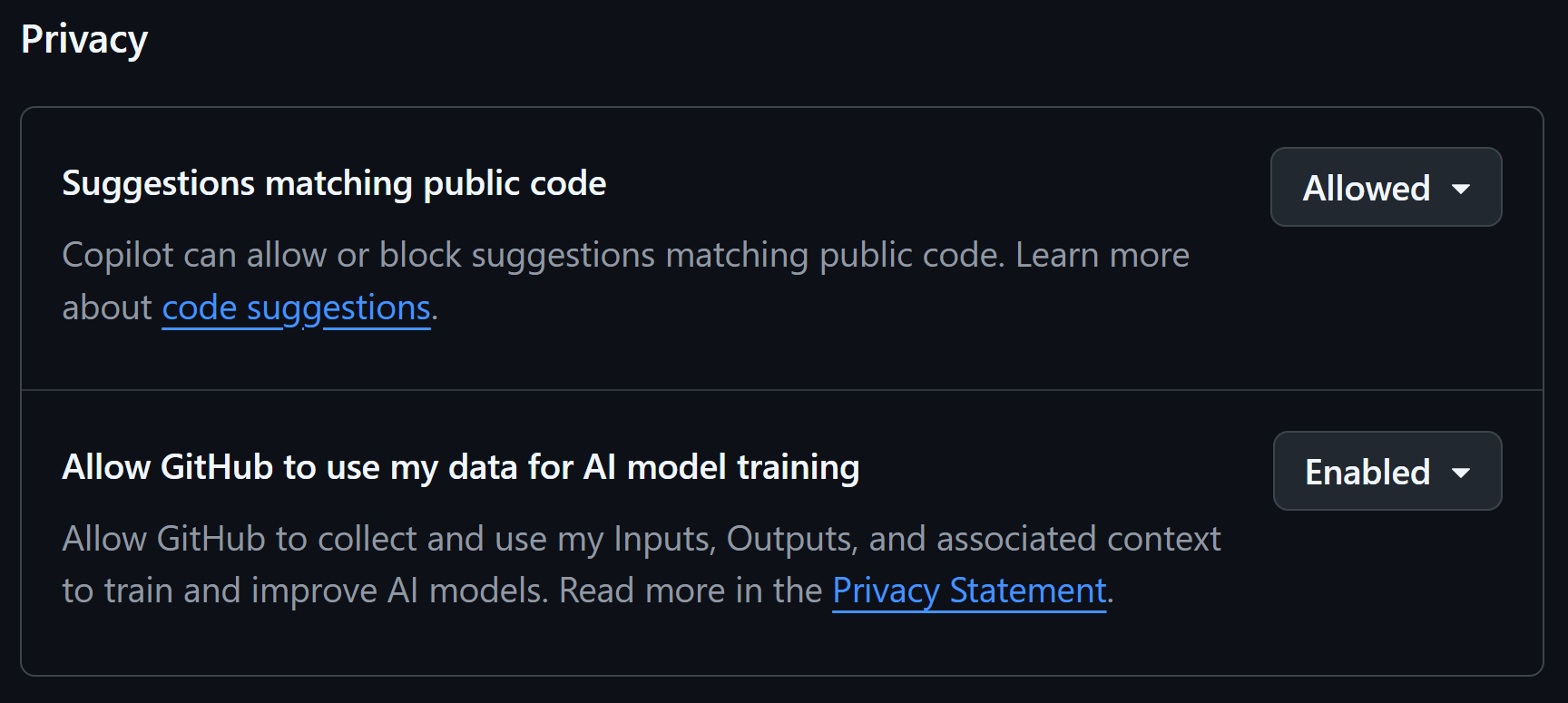
5. GitHub Copilot
| Setting name | Allow GitHub to use my data for AI model training |
| Where to find it | Not in the app. On the GitHub website: Settings > Copilot > Features > Privacy |
| State when I looked | Enabled |
| What it says it does | “Allow GitHub to collect and use my Inputs, Outputs, and associated context to train and improve AI models” |
| Second switch to check | Suggestions matching public code: set to Allowed |
| Retention shown in settings | None shown on this screen |
| Plan I checked | Free account, personal |
This was by far the hardest to find, and the reason is structural rather than sneaky. The setting is not in the editor where you actually use Copilot. You have to leave your development environment, go to the GitHub website, open your account settings, and go three levels down. If you have never gone looking for it, you have almost certainly never seen it.
All five side by side
| Tool | What the setting is called | State when checked | Retention shown | Plan checked |
|---|---|---|---|---|
| ChatGPT | Improve the model for everyone | On | Not shown | Paid personal |
| Google Gemini | Keep activity | On | 18 months | Personal Google account |
| Claude | Help improve our AI models | On | Not shown | Free |
| Microsoft 365 Copilot | Privacy, training toggle | On | Not shown | Paid business |
| GitHub Copilot | Allow GitHub to use my data for AI model training | Enabled | Not shown | Free |
Read the second column downwards and the real problem is obvious. If you wanted to check all five, there is no single phrase you could look for.
What is actually safe to share
Usually fine
Public information, your own draft writing, generic code with no keys or credentials.
Anything you would be relaxed about seeing quoted back to you later.
Do not paste
Passwords, API keys, tokens, customer records, medical details, government ID numbers.
Anything covered by an employer policy or a client contract you have not checked.
Tip: Replace real details with placeholders like [CLIENT A] before pasting, then put the real values back yourself afterwards. It costs seconds and removes the problem entirely.
If you have already pasted something sensitive
Act on this first: If it was a password, API key or token, rotate it now and read the rest afterwards. Deleting the conversation does not undo exposure, and rotating takes less time than deciding whether you need to.
For anything that is not a credential, work through it in order: delete the conversation, check whether the account offers a data export or deletion request, and if it was work material, tell whoever owns that data. That last step is uncomfortable and is almost always the right call.
Which setting to change first
Start here, depending on who you are
Student: check your institution’s AI policy before the tool’s settings. The tool will not fail you, the policy will. Related: whether AI writing can be detected.
Employee: use the account your employer approved, if one exists. It usually changes which terms apply.
Freelancer: check your client contract for confidentiality terms before anything else.
Developer: start with GitHub Copilot, because it is the one you have probably never seen. It is on the website, not in your editor.
If you are still deciding which assistant to commit to, our guide to choosing which assistant to use covers the non-privacy side of that decision.
Frequently asked questions
Is my data safe with AI tools?
It depends on which tool you use and one setting that is usually already switched on. When I checked ChatGPT, Google Gemini, Claude, Microsoft 365 Copilot and GitHub Copilot on 25 August 2026, the setting allowing my conversations to train the company’s models was on in all five cases, on accounts where I had never changed it.
Can AI tools use my prompts for training?
Yes, and in all five tools I checked this was switched on rather than something I had opted into. Every one of them does let you turn it off, but the setting is named differently in each product, and turning it off does not usually apply retroactively to conversations you have already had.
Is it safe to paste code into AI tools?
Two of the tools I checked name code specifically. Claude’s setting refers to chats and coding sessions, and GitHub Copilot’s covers your inputs, outputs and associated context. Generic code is usually low risk, but strip API keys, tokens, connection strings and internal hostnames first, because those tend to travel with it.
Where is the GitHub Copilot privacy setting?
It is not in your editor. You have to go to the GitHub website, open your account settings, then Copilot, then Features, then Privacy. It is the hardest of the five to find, and if you have never gone looking for it you have probably never seen it.
Are AI apps safe on Android and iPhone?
The mobile app is usually governed by the same account settings as the web version, so changing the setting once normally covers both. The extra consideration on mobile is permissions: an AI app does not need your contacts or your location to answer a question, so review what it has been granted.
Should students use AI for assignments?
That is decided by your institution’s policy, not by the tool’s privacy settings. Read the actual policy before you use AI on graded work, keep evidence of your own process, and remember that a privacy setting has no bearing on whether the use itself is permitted.
What should I do if I pasted a password or API key into AI?
Rotate the credential immediately. Do that before anything else, because deleting the conversation does not undo the exposure and rotating takes less time than working out whether you need to. Then delete the conversation, and if it was work material, tell whoever owns that data.
Bottom line
“Is my data safe” turns out to be the wrong question. The useful question is which setting is switched on in your account right now, and on the evidence above the honest default assumption is that it is on until you have looked.
The same instinct applies to what these tools tell you as well as what they keep, which is why it is worth knowing how to verify what an AI tells you.
Settings are one half of the answer. The other half is what actually leaves your machine, which we checked separately by recording the network traffic while pasting a marked paragraph into two writing tools: what happens to your text in AI writing tools. And if you are picking a tool rather than auditing one you already use, our retested comparison of the best free AI writing tools lists each free plan’s real limit alongside whether we have any test evidence about it.
Not sure if what you are about to paste is risky?
Our free checker asks a few questions about the material and the account you are using, then tells you what to strip out first. Nothing you type is sent anywhere.
Limitations of this check
Three things are worth being upfront about. These settings change without announcement, so this is a snapshot with a date on it and not a permanent answer. The five accounts were not all on the same plan, which is why each table names the plan I checked rather than implying they are all comparable. And I recorded what each settings screen showed me, not what happens internally, so this tells you what you can see and verify for yourself, which is also what you can act on.
Sources and references
Each setting’s own wording is quoted from the product interface on 25 August 2026. ChatGPT’s Data controls screen links to OpenAI’s explanation of how your data is used to improve model performance.