
Contents
If you have ever wanted to make videos but felt stuck because you cannot film, edit, or speak on camera, 2026 is a good year to start. AI video tools now turn a script, a blog post, or even a single text prompt into a finished video, with voiceover, captions, and stock footage added automatically. Others help you quickly edit footage you already have.
The problem is that there are dozens of these tools, and most “best AI video generator” lists are written to sell you the most expensive option. This guide is different. It explains, in plain language, which tools actually make sense for a beginner, what the free plans really give you, and where each tool falls short.
A quick note on terms: some tools here generate video from text or a script, and others help you edit footage you already have. Beginners usually need a mix, so this guide covers both. By the end, you will know exactly which tool to test first based on whether you are a student, a blogger, a YouTuber, or a small business owner.
Quick answer
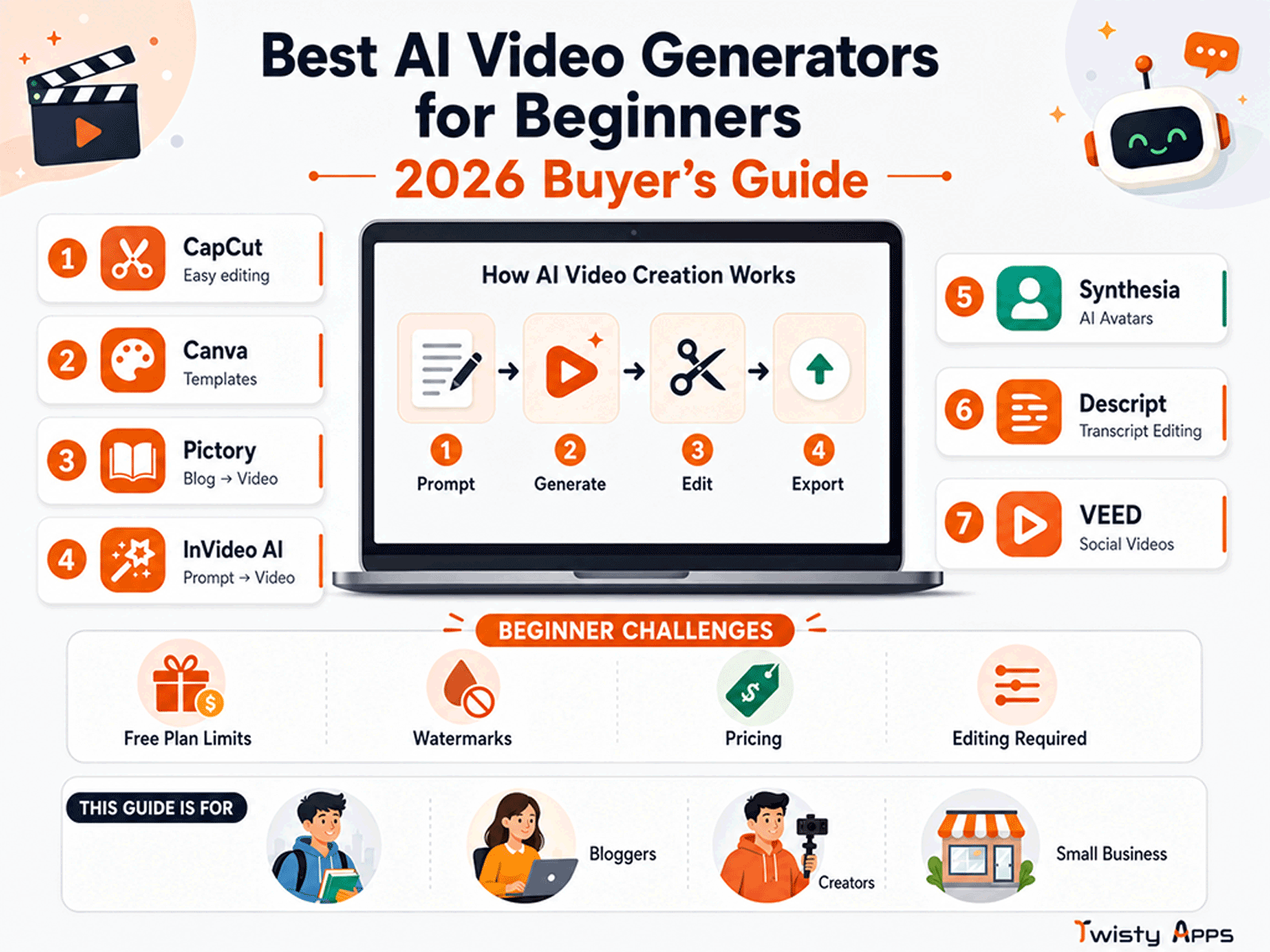
For most beginners in 2026, the easiest starting point is CapCut (free, great for short videos and editing) or Canva (free, best if you also make graphics). If you want to turn written content into video, Pictory and InVideo AI are the friendliest options, while Synthesia is best for professional “talking presenter” style videos without a camera. Start with a free tool, test it on one real video, and only pay once you know the tool fits your workflow.
Is this you?
This guide is written for non-technical beginners, including:
- Students making study explainers, presentations, or class projects.
- Bloggers and content creators who want to turn articles into videos.
- YouTubers who need faster scripts, edits, and captions.
- Freelancers offering video as a service to clients.
- Small business owners making product or social media videos.
- Anyone camera-shy who wants videos without filming themselves.
If you already edit professionally in tools like Premiere Pro, this list is intentionally simpler than what you use. New to AI in general? Start with our guide to the best AI tools for beginners, and if you write your own scripts, the best free AI writing tools can draft them for you.
Why choosing an AI video tool feels confusing
A common question beginners ask is simple: “Which AI video tool should I actually start with?” The honest answer is that it depends on what you are making, and that is exactly what most lists skip. Here are the real problems beginners run into:
- Free plans have limits. Many tools add a watermark, cap video length, or limit exports per month.
- Some tools are great for one thing only. A tool that is excellent for “blog-to-video” may be weak for editing raw footage.
- The output can look generic. Stock-footage AI videos can feel repetitive if you do not customize them.
- Pricing is confusing. Credits, minutes, and “AI generations” are measured differently in every tool.
The realistic takeaway is that AI video tools speed up the work, but you still guide the result. Pick the one that matches your task, not the one with the longest feature list.
The best AI video tools for beginners, by job
Below are seven beginner-friendly options. They fall into three jobs, so here is the whole map before we go deep on each one.
Generate from text
Turn a prompt, script, or blog post into a video. Pictory, InVideo AI.
Edit footage
Trim, caption, and polish clips you already have. CapCut, Canva, Descript, VEED.
AI presenter
A talking avatar with no camera needed. Synthesia.
1. CapCut: best free all-rounder
- Best for: Short-form videos (Reels, Shorts, TikTok) and quick editing.
- Key features: Auto-captions, AI background removal, templates, text-to-speech.
- Pricing: Generous free plan; paid “Pro” unlocks extra effects and assets.
- Pros: Free, beginner-friendly, works on mobile and desktop.
- Cons: Not a true “text-to-video from scratch” generator; some assets are Pro-only.
- Best use case: A creator editing clips into a polished Short.
- Beginner recommendation: Strong starting point if you have any footage to edit.
2. Canva: best if you also design graphics
- Best for: Simple videos, presentations, and social posts in one place.
- Key features: Video templates, Magic media tools, stock library, brand kit.
- Pricing: Useful free plan; Canva Pro adds premium assets and AI features.
- Pros: Very easy, huge template library, all-in-one design and video.
- Cons: Less powerful for long or complex edits.
- Best use case: A small business owner making quick promo videos.
- Beginner recommendation: Excellent for non-technical users.
3. Pictory: best for turning blogs or scripts into video
- Best for: Repurposing written content into narrated videos.
- Key features: Script-to-video, blog-to-video, auto-captions, AI voiceovers.
- Pricing: Paid plans with a limited free trial.
- Pros: Saves time for bloggers; automatic scene matching.
- Cons: Stock visuals can feel generic; trial limits are tight.
- Best use case: A blogger converting an article into a YouTube video.
- Beginner recommendation: Good if writing is already your main content.
4. InVideo AI: best for text-prompt-to-video
- Best for: Generating a full video from a single prompt.
- Key features: Prompt-based generation, editing by text commands, voiceovers.
- Pricing: Free plan with watermark and weekly limits; paid plans remove them.
- Pros: Fast first drafts; beginner-friendly prompting.
- Cons: Output often needs manual tweaking; free exports are limited.
- Best use case: A YouTuber drafting faceless videos quickly.
- Beginner recommendation: Strong, but expect to refine the result.
5. Synthesia: best for AI presenter videos
- Best for: Professional “talking head” videos without a camera.
- Key features: AI avatars, multi-language voiceovers, templates.
- Pricing: Paid; aimed at business and training use.
- Pros: Polished, corporate-quality presenter videos.
- Cons: No free plan for full use; avatars can feel formal.
- Best use case: A business making training or explainer videos.
- Beginner recommendation: Best when you need a presenter but not yourself.
6. Descript: best for editing video like a document
- Best for: Podcasts, talking videos, and tutorials.
- Key features: Edit video by editing text, filler-word removal, screen recording.
- Pricing: Free tier with limits; paid plans add more export and features.
- Pros: Unusually intuitive for spoken-word content.
- Cons: Less suited to highly visual, fast-cut videos.
- Best use case: A freelancer editing client interviews.
- Beginner recommendation: Great if your videos are speech-based.
7. VEED: best browser-based editor
- Best for: Quick edits, subtitles, and translations in the browser.
- Key features: Auto-subtitles, AI avatars, no install required.
- Pricing: Free plan with watermark; paid removes limits.
- Pros: Works fully online; clean interface.
- Cons: Free exports are restricted.
- Best use case: A student adding captions to a class video.
- Beginner recommendation: Solid for fast, simple jobs.
Quick comparison
| Tool | Best for | Free plan | Ease of use | Main limitation | Best user type |
|---|---|---|---|---|---|
| CapCut | Short-form editing | Yes (generous) | Very easy | Not full text-to-video | Creators, students |
| Canva | Design and video | Yes | Very easy | Weak for long edits | Small business |
| Pictory | Blog-to-video | Trial only | Easy | Generic stock visuals | Bloggers |
| InVideo AI | Prompt-to-video | Yes (watermark) | Easy | Needs manual tweaks | YouTubers |
| Synthesia | AI presenter | No (paid) | Easy | Formal feel, no free use | Business, training |
| Descript | Talking videos | Yes (limited) | Easy | Less visual | Freelancers, podcasters |
| VEED | Browser editing | Yes (watermark) | Easy | Limited free exports | Students |
How real beginners use these tools
- A student turns lecture notes into a short narrated recap video using Canva or VEED.
- A blogger pastes an article into Pictory to create a YouTube version and reach a new audience.
- A YouTuber uses InVideo AI to draft a faceless explainer, then refines the script and visuals.
- A small business owner makes a 30-second product promo in Canva for Instagram.
- A freelancer edits a client podcast in Descript by deleting text instead of cutting clips.
- A camera-shy creator uses Synthesia to make a polished training video with an AI presenter.
Free vs paid: is the free version enough?
For many beginners, the free version is enough to start, especially with CapCut, Canva, and VEED. You can stay on free if you only post occasionally, accept a watermark, or make short videos. You should consider paying when:
- The watermark hurts your brand.
- You hit export or length limits regularly.
- You need higher-quality voiceovers or premium stock.
- Video becomes part of how you earn money.
Before upgrading, test the free plan on one real video. In most cases, the deciding factor is watermark removal and export limits, not fancy features you may never use.
Before you sign up or pay, check these
- Free plan limits: watermark, length, exports per month.
- Test with your real task, not the demo template.
- Output quality: does the voiceover and footage look natural?
- Export options: resolution, format, and platform fit.
- Privacy and data rules, especially for client or business content.
- Country and payment support: confirm cards or local options work.
- Avoid paying just because a tool is trending. Popularity is not the same as fit.
Best choice by user type
- Best for beginners: CapCut
- Best for students: Canva or VEED
- Best for content creators: InVideo AI
- Best for small businesses: Canva (quick) or Synthesia (professional)
- Best free option: CapCut
- Best paid option: Synthesia (presenter videos) or Pictory (blog-to-video)
- Best for long-term use: Canva, because it grows with you across video and design
Our recommendation
There is no single “best” AI video tool, there is only the best one for your task. If you are just starting and want zero cost, begin with CapCut or Canva. If you create written content, try Pictory or InVideo AI. If you need a professional presenter without filming, Synthesia is the clear pick. Whatever you choose, test the free version on one real video before paying.
Want to build your skills further? Follow our Learn AI in 30 Days plan, and remember that AI visuals and voiceovers still need a human check, so it helps to check AI output before you trust it. For business use, see our AI workflows for small business.
Frequently asked questions
What is the best free AI video generator for beginners?
CapCut is the best free all-rounder for most beginners because it offers generous free editing, auto-captions, and works on both mobile and desktop. Canva is a strong free alternative if you also want to make graphics and presentations.
Can AI really make a video from just text?
Yes. Tools like InVideo AI and Pictory can turn a prompt or a written script into a narrated video with footage and captions. However, the first draft usually needs manual edits to look polished and on-brand.
Do AI video generators put a watermark on free videos?
Many do. Free plans from tools like InVideo AI and VEED often add a watermark and limit exports. Removing the watermark is usually the main reason beginners upgrade to a paid plan.
Which AI video tool is best for YouTube?
InVideo AI is popular for faceless YouTube videos, while CapCut is excellent for editing Shorts. Bloggers repurposing articles into YouTube videos often prefer Pictory.
Are AI video generators good for non-technical users?
Yes. Most beginner tools are template-based and require no editing experience. Canva and CapCut are especially friendly for non-technical users.
Is it worth paying for an AI video generator?
It is worth paying once video becomes a regular part of your work and free limits slow you down. Before upgrading, test the free plan on a real project to confirm the tool fits your workflow.
Can students use AI video tools for free?
Yes. Students can use CapCut, Canva, and VEED free plans to make study recaps, presentations, and class projects, though longer or watermark-free exports may need a paid plan.
Which video are you making first?
Start free, test on one real video, and build from there. New to AI? Begin with the basics.
Read: Best AI Tools for BeginnersImage and trademark note: All graphics in this article are original illustrations created by TwistyApps for editorial purposes. They are not official logos and do not reproduce any copyrighted logo artwork. Product names such as CapCut, Canva, Pictory, InVideo, Synthesia, Descript, and VEED are trademarks of their respective owners and are used here only to identify and review the products (nominative fair use). TwistyApps is not affiliated with or endorsed by these companies. Features and pricing change frequently, so please confirm current details on each provider’s official website before purchasing.